English
 Tiếng Việt

How to Install RustDesk on Windows, macOS and Linux
You can install RustDesk for remote IT support without setting up your own server. Download the package for your operating system and CPU, open RustDesk on both devices, and use the ID shown on the computer that needs support.
Download RustDesk from the official source
Visit rustdesk.com or open the official stable RustDesk release. Expand Assets and choose the package for your device. If the release lists a SHA-256 digest for the download, compare it with the digest calculated locally.
- Windows: choose the appropriate
.exe. Check Settings → System → About → System type for your architecture. - macOS: choose the
.dmgfor ARM64 on Apple silicon or x86_64 on Intel. Check Apple menu → About This Mac if needed. - Ubuntu, Debian and Linux Mint: choose the
.deb. For Rocky Linux or Fedora, choose the.rpm. Rununame -mto check whether your system isx86_64oraarch64.
Install RustDesk on Windows 11
- Open the official download page. On your Windows computer, open Edge or Chrome and follow the official RustDesk download link.
- Select EXE under Windows. Find x86-64 (64-bit) in the download table and select EXE in the Windows column. In the Assets list, the same installer ends in
-x86_64.exe. This is the version for 64-bit Windows PCs with Intel or AMD processors.
The yellow outline marks the row and download link. Screenshot captured and annotated by TWF from the official RustDesk release page.
- Open the downloaded file. Select the Downloads icon near the top-right corner of your browser and open the RustDesk file. You can also press Windows + E, open Downloads, and double-click the
.exe.
TWF illustration. Open Downloads and double-click the RustDesk .exe file.
- Run it once or install it. For one-time IT support, leave the RustDesk window open. For regular use, select Install in the app. If your work computer requests an administrator password or blocks the file, contact your IT team.

TWF illustration. Select Install to set up RustDesk for regular use.
- Share your ID with IT and approve the session. Find the number under Your ID and share it through your company’s support channel. Verify who is connecting and choose Accept if prompted. End the session when support is complete.
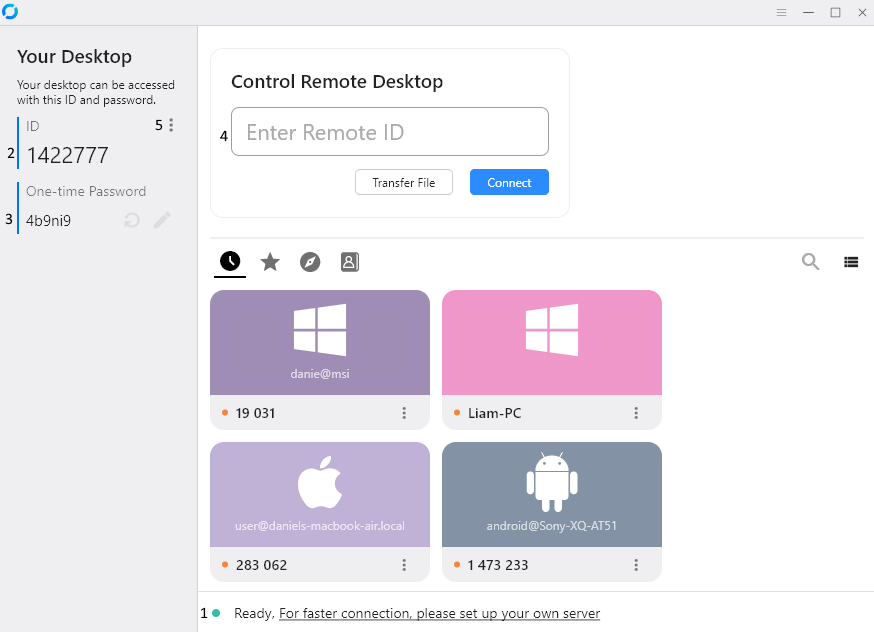
Find your computer’s ID on the left, marked 2. The Enter Remote ID field on the right is for another computer’s ID. Accept appears on incoming requests when approval is required. Screenshot from the official RustDesk documentation.
Unsure which version to choose? Open Start → Settings → System → About and check System type. If it says ARM-based processor, select EXE in the AArch64 (ARM64) row.
Install RustDesk on macOS
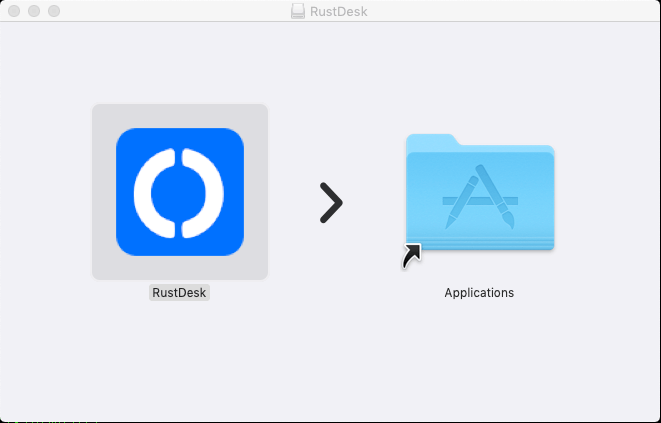
RustDesk installer on macOS. Screenshot from the official RustDesk documentation.
- Open the
.dmg, drag RustDesk into Applications, and open it from there. - On the Mac receiving support, open System Settings → Privacy & Security. Grant Accessibility for mouse and keyboard control and Screen Recording (also labeled Screen & System Audio Recording on some versions) to share the display.
- Quit and reopen RustDesk if prompted. If mouse or keyboard input still fails, check Input Monitoring as directed by the app.
Install RustDesk on Ubuntu and Rocky Linux
Open Terminal in the download directory. Replace the example filename with the exact filename you downloaded.
Ubuntu, Debian and Linux Mint
sudo apt install ./rustdesk-PACKAGE-NAME.debRocky Linux and Fedora
sudo dnf install ./rustdesk-PACKAGE-NAME.rpmLaunch RustDesk from your app menu or run rustdesk inside the desktop session. On Ubuntu 24.04, run echo "$XDG_SESSION_TYPE" to check whether you are using Wayland or X11. If Wayland opens a screen-sharing picker, the person at the remote computer should confirm it. To try X11, sign out and choose Ubuntu on Xorg at the sign-in screen if available. For unattended deployments, test the locked-screen and post-reboot behavior separately.
Start your first RustDesk session
- Open RustDesk on both devices. The person receiving support should give the technician the ID shown under Your ID through a verified channel.
- On the controlling device, enter it in Remote ID and select Connect.
- Accept the request on the remote device or share the temporary password privately if the configuration requires it. Enable keyboard and mouse control, clipboard access, and file transfer only as needed.
- Check that the screen and required controls work. Disconnect in RustDesk when the work is complete.
On Android, use the download route in the official documentation and enable Share Screen on the device you need to share. Enable input control only when needed. The iPhone and iPad app can act as a controller for other devices.
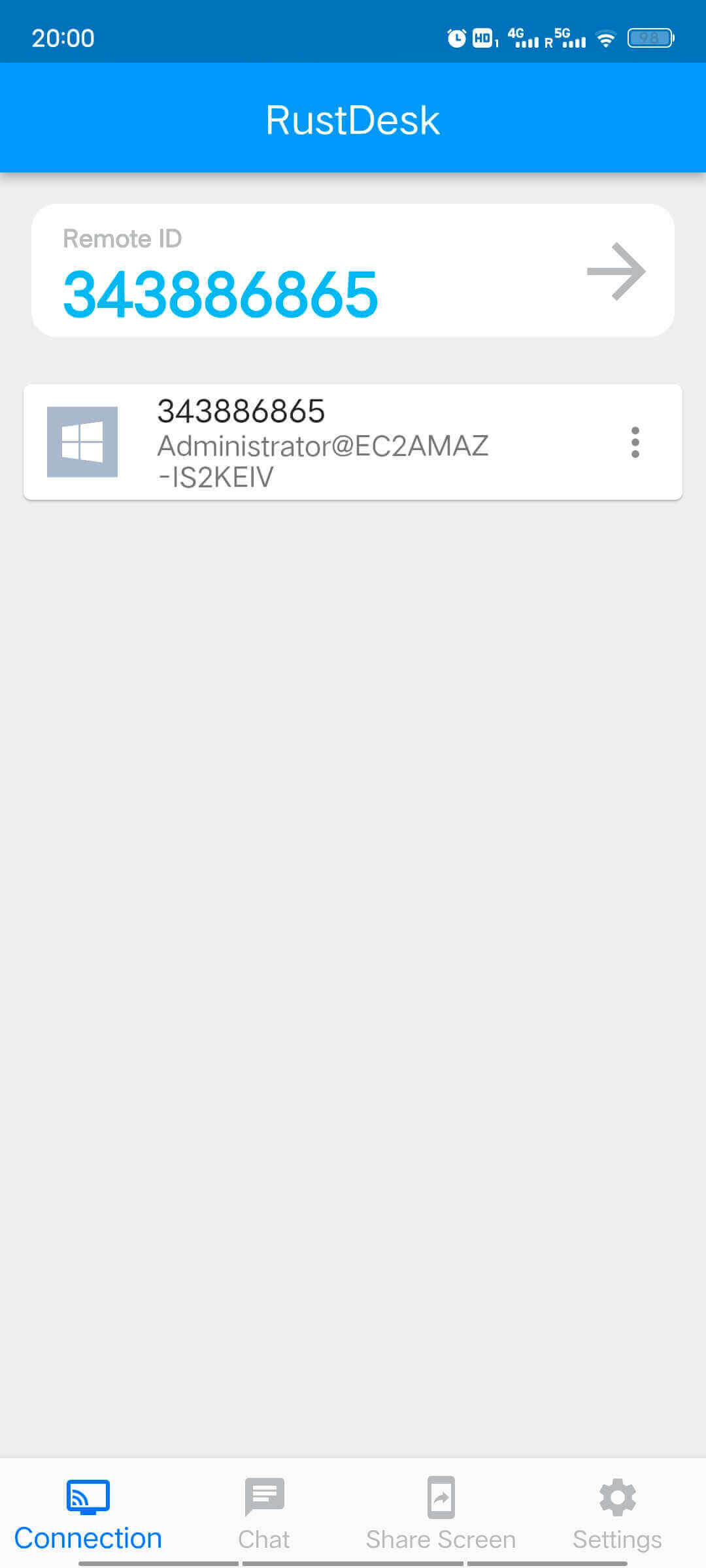
Enter the ID of the device you want to support. Screenshot from the official RustDesk documentation.
Troubleshoot common RustDesk issues
- Connection fails: verify the ID, readiness status, and network on both devices. For a self-hosted environment, verify the ID Server, Relay Server, and public key supplied by IT.
- Blank screen on Mac or Ubuntu: check macOS screen recording permissions, any Wayland sharing prompt, and the state of the remote desktop session.
- Screen is visible but input fails: check the session permissions, Accessibility on the Mac, or elevation on Windows if the issue occurs at a UAC prompt.
When should you set up unattended access?
For routine employee support, an attended session is usually enough. If IT needs to maintain authorized computers after hours, use a unique permanent password per device, keep it in a password vault, and test access after a restart. If your organization runs its own RustDesk server, enter the endpoint and public key supplied by IT in Settings → Network.
Is RustDesk free? How it compares with UltraViewer and TeamViewer
- RustDesk: The client is free to download and its source code is licensed under AGPL-3.0. Businesses can use the open-source client under that license. RustDesk Server OSS has no license fee for self-hosting, while Server Pro charges for advanced administration. Hosting and operating costs depend on your deployment. See the client license and RustDesk Server plans.
- UltraViewer: A free version covers basic use. Paid Lite, Professional and Premium plans offer different features. Check the UltraViewer pricing page for file transfer limits, address book support and concurrent sessions.
- TeamViewer: Free use is for personal purposes. Supporting employees or customers as part of your work requires an appropriate commercial license. See TeamViewer’s usage policy.
Official documentation
Edited and published by TWF.